Connect n8n to Your DashNex Store in 10 Minutes
Quick win: Connect DashNex to n8n in 10 minutes. Automate order confirmations, customer tracking, and inventory alerts.
No coding required.
What You’ll Achieve
After this tutorial:
- ✅ DashNex sends order data to n8n automatically
- ✅ n8n processes every new order
- ✅ Send instant order confirmations
- ✅ Log orders to Google Sheets
- ✅ Get Slack notifications for new sales
Time: 10 minutes Cost: $0 (if you already have DashNex + n8n)
Prerequisites
You need:
- DashNex PowerTech store ($27 one-time, affiliate link)
- n8n instance (deploy free)
- 10 minutes
Optional:
- SendGrid account (order confirmation emails)
- Google Sheet (order tracking)
- Slack workspace (notifications)
Step 1: Create n8n Webhook (2 minutes)
In n8n:
- Click “+ Add workflow”
- Add “Webhook” node
- Configure webhook:
- Method: POST
- Path:
dashnex-orders - Authentication: None (we’ll secure later)
- Click “Listen for Test Event”
- Copy webhook URL
Your URL looks like:
https://your-n8n.com/webhook/dashnex-ordersSave this URL - you’ll need it in Step 2.
Step 2: Configure DashNex Webhook (3 minutes)
In DashNex dashboard:
- Go to Settings → Integrations
- Find “Webhooks” section
- Click “Add Webhook”
- Configure:
- Event: New Order
- URL: (paste n8n webhook URL from Step 1)
- Method: POST
- Status: Active
- Click “Save”
Test it:
- Create test order in DashNex
- Check n8n - should see incoming data
- If you see JSON data → Success!
Step 3: Build First Automation (5 minutes)
Automation: Order Confirmation Email
Workflow structure:
Webhook (receive order)
→ Function (format data)
→ SendGrid (send email)
→ Google Sheets (log order)
→ Slack (notify team)
Node 1: Webhook
Already set up in Step 1.
Sample data received:
{
  "order_id": "ORD-1001",
  "customer_email": "[email protected]",
  "customer_name": "John Doe",
  "total": 97.0,
  "items": [{ "name": "Product A", "quantity": 2, "price": 48.5 }],
  "created_at": "2025-05-05T10:30:00Z"
}
Node 2: Function Node (format data)
Add “Function” node after Webhook.
Code:
// Extract order data
const order = {
  id: $json.order_id,
  customerEmail: $json.customer_email,
  customerName: $json.customer_name,
  total: $json.total,
  items: $json.items,
  date: new Date($json.created_at).toLocaleDateString(),
};

// Format items for email
const itemsList = order.items
  .map((item) => `${item.name} (${item.quantity}x) - $${item.price}`)
  .join("\n");

return [
  {
    json: {
      ...order,
      itemsList,
      subject: `Order Confirmation - ${order.id}`,
      emailBody: `Hi ${order.customerName},\n\nYour order has been received!\n\nOrder ID: ${order.id}\nTotal: $${order.total}\n\nItems:\n${itemsList}\n\nThanks for your purchase!`,
    },
  },
];
Node 3: SendGrid Node (send email)
Add “SendGrid” node.
Configure:
- Credentials: Add SendGrid API key
- From Email: [email protected]
- To Email: ={{$json.customerEmail}}
- Subject: ={{$json.subject}}
- Content Type: Plain Text
- Message: ={{$json.emailBody}}
Node 4: Google Sheets Node (log order)
Add “Google Sheets” node.
Configure:
- Operation: Append
- Document: Your tracking spreadsheet
- Sheet: Orders
- Columns:
- Order ID: ={{$json.id}}
- Customer: ={{$json.customerName}}
- Email: ={{$json.customerEmail}}
- Total: ={{$json.total}}
- Date: ={{$json.date}}
Node 5: Slack Node (notify team)
Add “Slack” node.
Configure:
- Channel: #sales
- Message: New order: ${{$json.total}} from {{$json.customerName}} ({{$json.id}})
Step 4: Test End-to-End
Testing checklist:
- ✅ Place test order in DashNex
- ✅ Check n8n execution log (should be green)
- ✅ Verify email received
- ✅ Check Google Sheet (row added)
- ✅ Check Slack (notification sent)
If something fails:
- Check n8n execution details (click on failed node)
- Verify webhook URL in DashNex
- Check SendGrid API key is valid
- Ensure Google Sheets permissions granted
Common Issues & Fixes
Issue: Webhook not triggering
- ✅ Verify webhook URL is correct in DashNex
- ✅ Check webhook is set to “Active”
- ✅ Test with curl:
curl -X POST https://your-n8n.com/webhook/dashnex-orders \
  -H "Content-Type: application/json" \
  -d '{"order_id": "TEST", "total": 99}'
Issue: Email not sending
- ✅ Verify SendGrid API key
- ✅ Check sender email is verified in SendGrid
- ✅ Look for errors in SendGrid Activity Feed
Issue: Google Sheets not updating
- ✅ Grant n8n access to Google account
- ✅ Verify sheet name matches exactly
- ✅ Check column names match
5 More Automations to Build Next
1. Abandoned Cart Recovery
Schedule (hourly)
→ DashNex API (get abandoned carts)
→ Filter (carts > 2 hours old)
→ SendGrid (recovery email with discount)
2. Low Inventory Alerts
Schedule (daily)
→ DashNex API (check inventory)
→ Filter (items < 10 in stock)
→ Slack (alert team to reorder)
3. Customer Segmentation
Webhook (new order)
→ Calculate total customer spend
→ Google Sheets (update customer tier)
→ Tag in email list (VIP, Regular, New)
4. Review Request Sequence
Webhook (order shipped)
→ Wait (5 days)
→ SendGrid (request review)
→ Log response
5. Weekly Sales Report
Schedule (Monday 8am)
→ DashNex API (orders last 7 days)
→ Calculate metrics
→ Format HTML report
→ Email to owner
Security Best Practices
Secure your webhook:
-
Add authentication to webhook:
- n8n: Webhook node → Header Auth
- DashNex: Webhook → Add header
Authorization: Bearer YOUR_SECRET
-
Use HTTPS only (always enabled on n8n Cloud/properly configured VPS)
-
Validate incoming data:
// In Function node
if (!$json.order_id || !$json.customer_email) {
  throw new Error("Invalid order data");
}- Rate limiting:
- n8n Cloud: Built-in
- Self-hosted: Use Cloudflare
Cost Breakdown
Monthly costs for automation:
DashNex: $0 (one-time $27)
n8n: $5 (VPS) or $20 (Cloud)
SendGrid: $0 (up to 100 emails/day)
Google Sheets: $0
Slack: $0

Total: $5-20/month
vs alternatives:
Shopify + Zapier: $29 + $20 = $49/month
WooCommerce + Zapier: $15 + $20 = $35/month

Savings: $15-29/month = $180-348/year
Next Steps
- ✅ Set up basic order confirmation (you just did this!)
- Build abandoned cart recovery
- Add inventory alerts
- Create customer segmentation
- Automate review requests
Each automation saves 30-60 minutes per week.
FAQ
Q: Can I connect multiple DashNex stores?
Yes. Create separate webhooks in n8n for each store, or use one webhook with a filter to route by store ID.
Q: What if DashNex changes their webhook format?
n8n logs show you the exact data received. Update Function node to match new format.
Q: Can I use this with Shopify/WooCommerce instead?
Yes! Same concept, just configure their webhooks instead. n8n works with any webhook-enabled platform.
Q: How many orders can this handle?
Tested up to 1,000 orders/day with no issues. For >5,000/day, upgrade VPS or use n8n Cloud.
Related posts:
About the author: I’m Mike Holownych, automation consultant. I help entrepreneurs connect their stores to n8n for smart automation. Learn more →
More Posts You'll Love
Hand-picked based on what you're reading
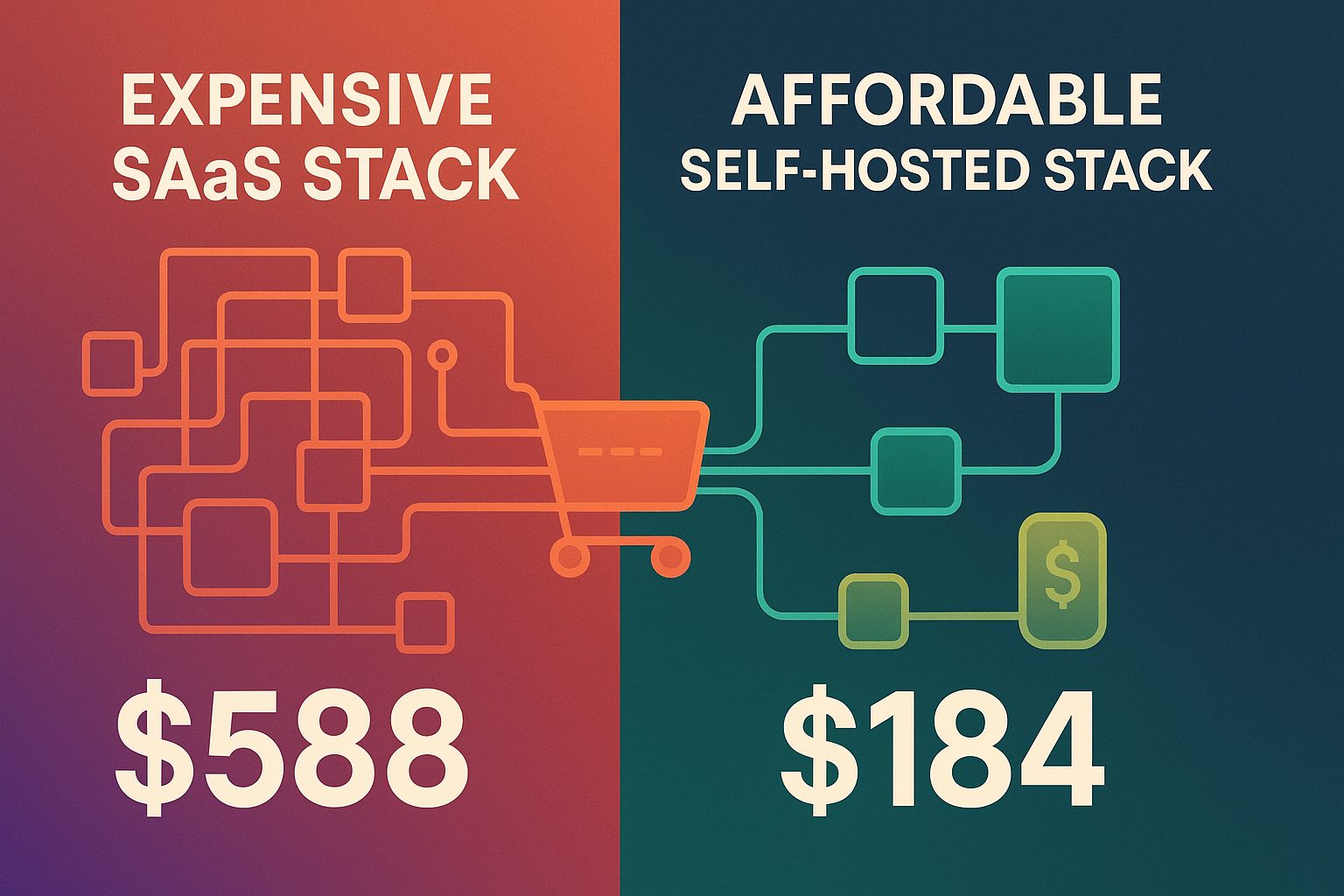
The Budget Tech Stack That Replaces Expensive SaaS (2026)
How DashNex + n8n saves hundreds per year vs Shopify + Zapier. Complete setup guide with real costs, no hype.
Related topics: #n8n, #dashnex
How to Deploy n8n for Free: Complete 2026 Guide
Step-by-step guide to self-hosting n8n automation platform. Save $240/year vs Zapier. Includes DigitalOcean setup with $200 free credit.
Related topics: #n8n, #automation
Migrate from Zapier to n8n: Complete Step-by-Step Guide
Save $1,800-4,200/year by migrating from Zapier to n8n. This guide covers planning, rebuilding workflows, testing, and avoiding common pitfalls.
Related topics: #n8n, #automation